
C.2 Creating map files
Having installed the MXD2WMS tool, create or open an ArcMap file containing your symbolized data.
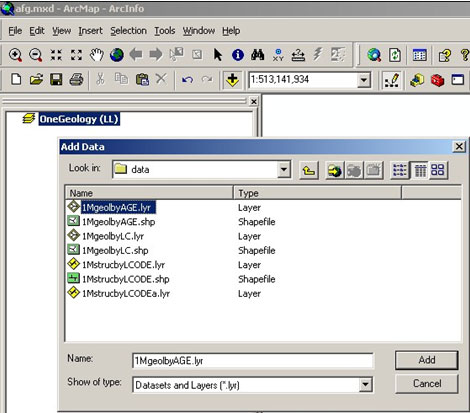
Click on the MXD2WMS tool icon  and then close the pop-up window.
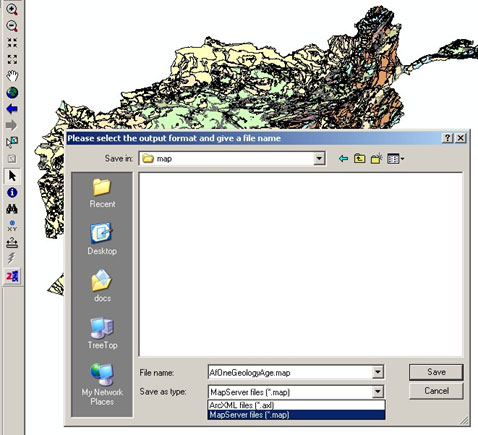
Closing the pop-up window opens a save as dialogue window. The default data type to export to from this tool is AXL, so you will need select MapServer files (*.map) type from the drop down menu.
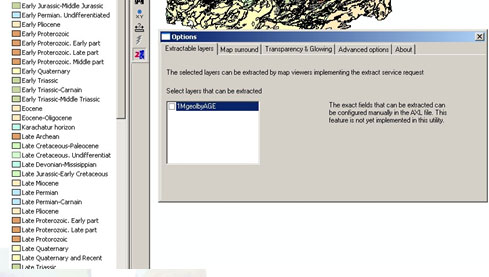
Please note, that though there are a number of tabbed options in the pop-up, they may not actually change the resultant map file. For example the tool will create a map file (and classify) any layer file or shape file in the ArcMap layer irrespectively of whether it is selected in the options dialogue, or whether it is selected in the map file.
This will create a complete map file. However, you should simply copy the CLASS definitions from this map file to the appropriate LAYER section of the map file you have been creating according to the instructions in the body of this cookbook.
If your symbolization in ArcMap had polygon boundaries you will need to remove these from the MapServer symbolization. This may be easier to do by deleting all the ‘OUTLINECOLOR’ lines from the generated map file than by altering your ArcMap symbolization.
Section last modified: 19 January 2010.